How to Remove White Noise from Audio for Clearer Sound
Mark Jensen | Updated on 2026-11-11
White noise can make audio recordings sound distracting and unclear. Whether you're recording a podcast, voiceover, or music, removing unwanted noise helps improve audio clarity.
With Clumi AI White Noise Remover, you can reduce background noise online without complicated editing. Simply upload your audio and let AI clean up unwanted sounds while preserving important audio details. For more advanced noise reduction, Clumi Pro Separation offers a DeNoise feature for cleaner audio processing.
In this guide, you'll learn how to remove white noise from audio using Clumi AI.
Part 1. Remove White Noise from Audio Online with Clumi AI
Clumi AI White Noise Remover
Clumi AI white noise remover helps reduce unwanted hiss, static, and background noise from audio recordings. Powered by AI, it targets distracting noise while preserving natural voices, music, and other important sounds. Clean up podcasts, voiceovers, and video audio online in just a few clicks, with no complicated editing required.
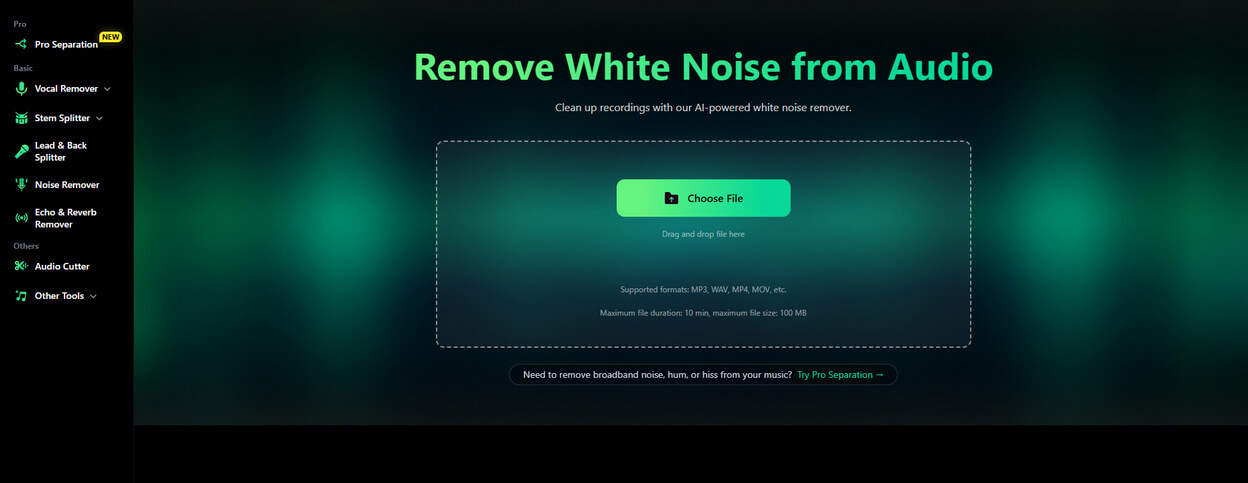
How to remove white noise from audio with Clumi AI:
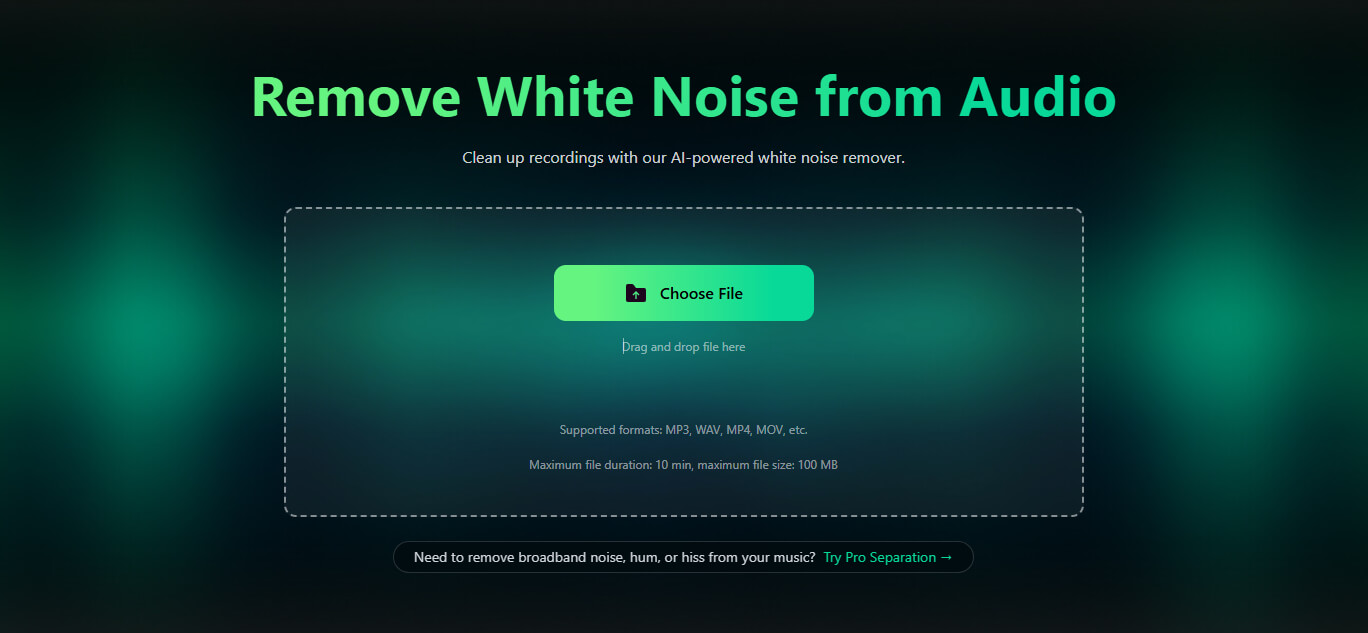
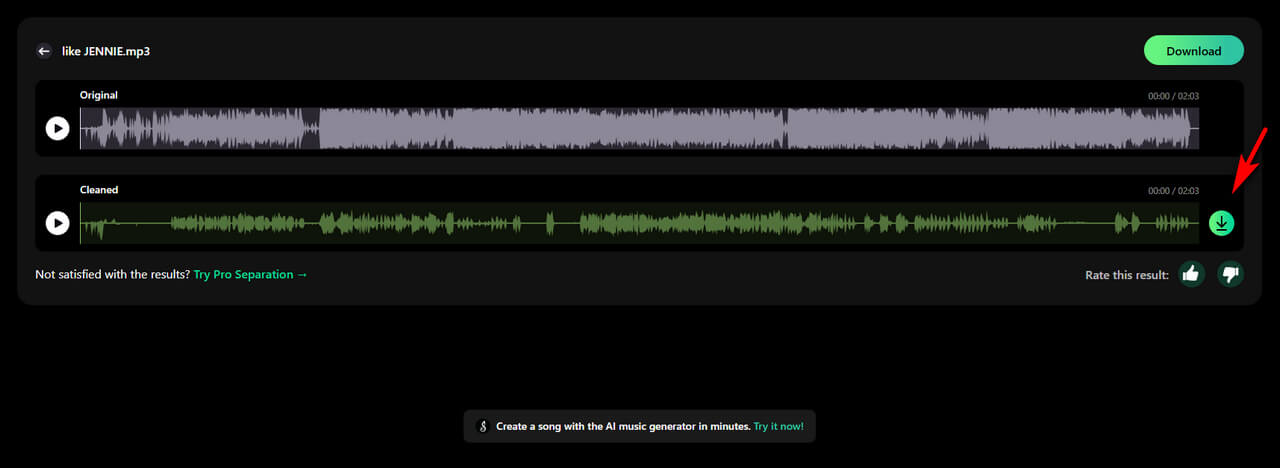
- Upload your audio or video file to Clumi AI white noise remover. It supports formats like MP3, WAV, MP4, and MOV.
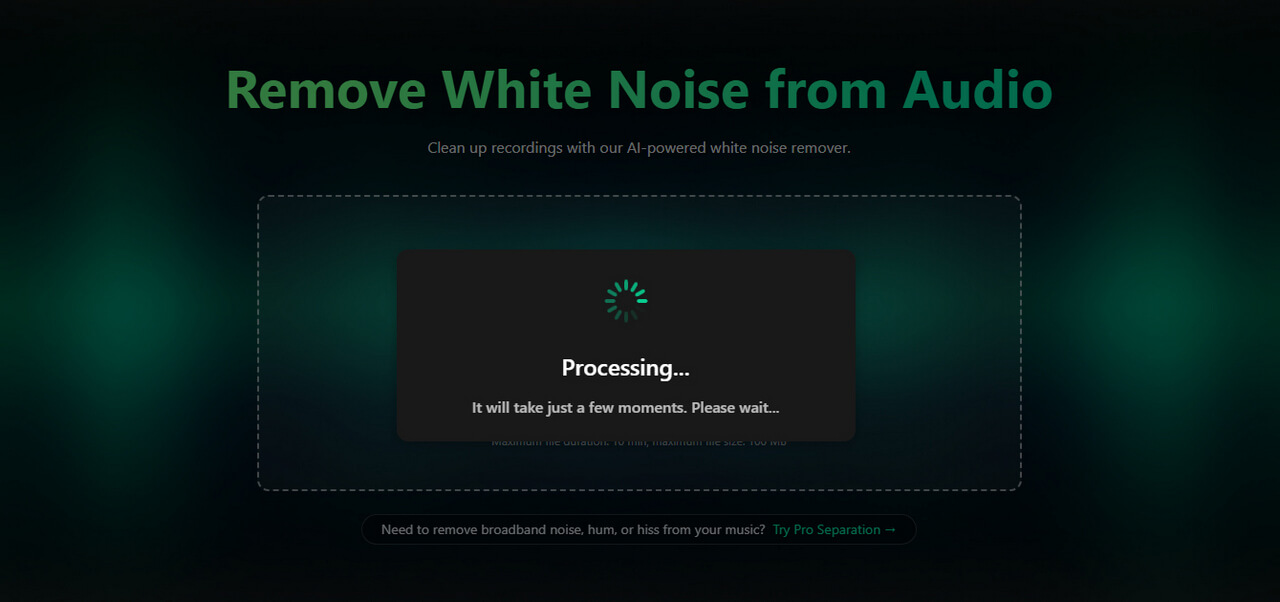
- Let AI analyze your recording, detect unwanted white noise like hiss and static, and reduce it automatically within seconds.
- Preview the cleaned audio and download the result to your device, ready for editing, sharing, or publishing.
Part 2. Reduce Background Noise with Clumi Pro Separation
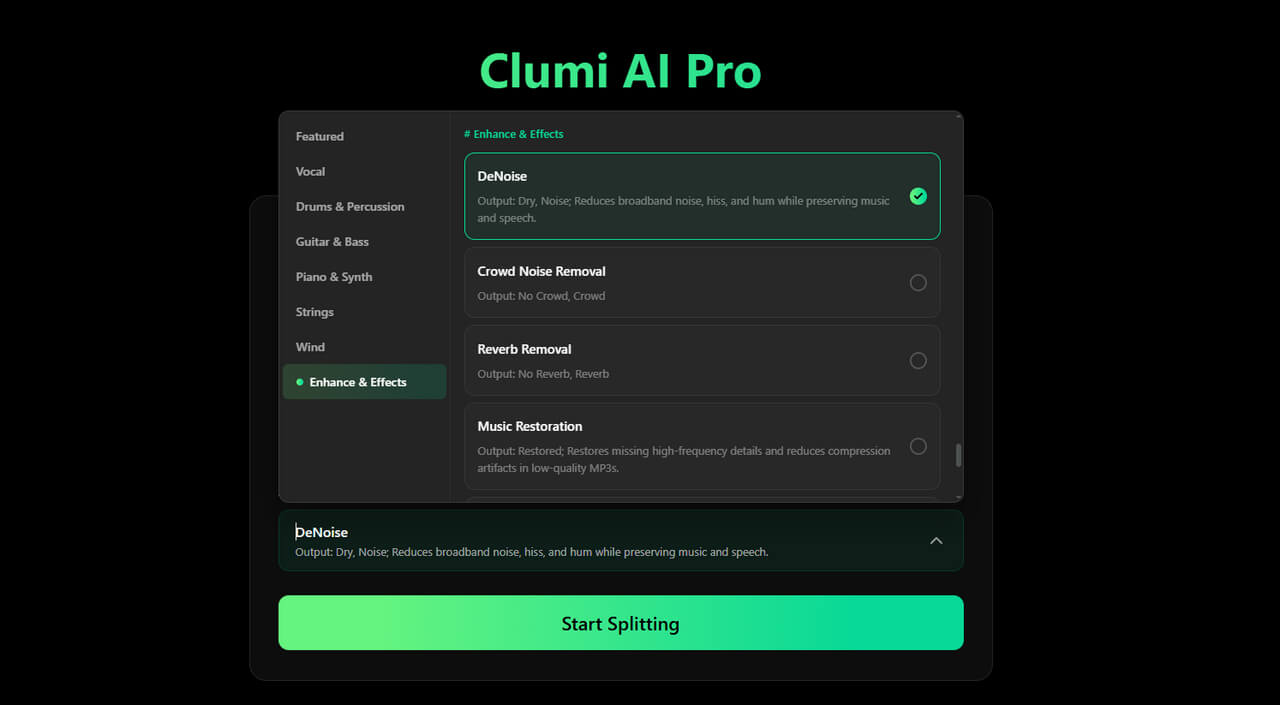
If your recording contains humming, room noise, or other unwanted sounds, Clumi Pro Separation offers advanced processing options. Its DeNoise model reduces background noise while preserving important audio details.
You can also use different separation modes to isolate specific sounds and clean up voice recordings, music, and video audio with greater control.
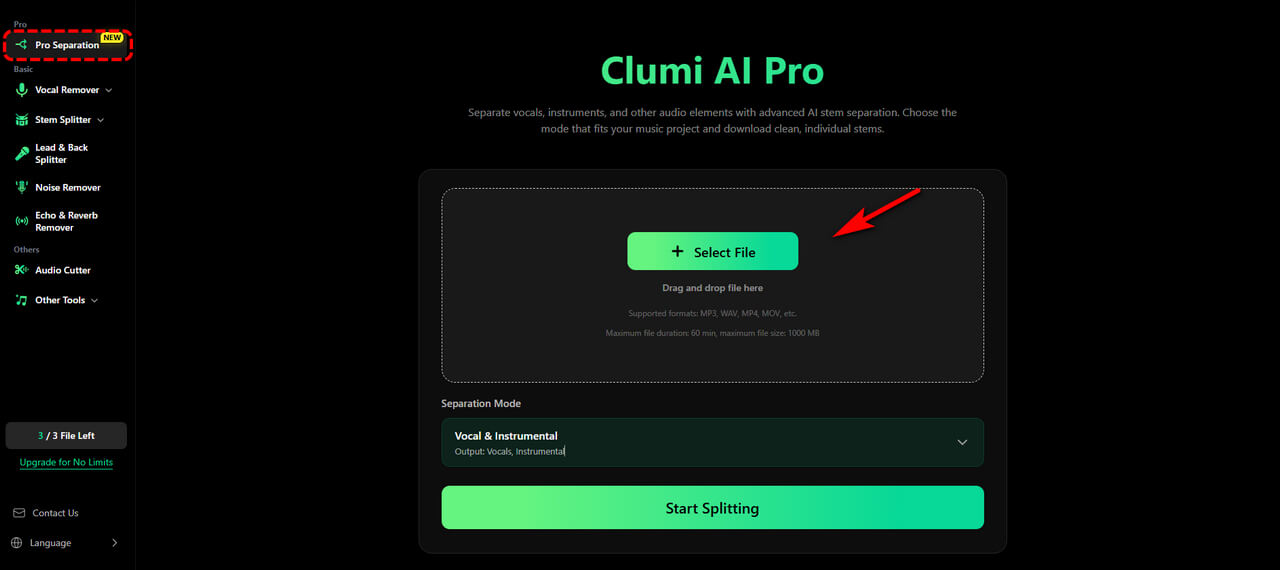
- Open Clumi Pro Separation and upload the audio or video file you want to clean up.
- Select the DeNoise model to reduce unwanted background noise, then start the processing.
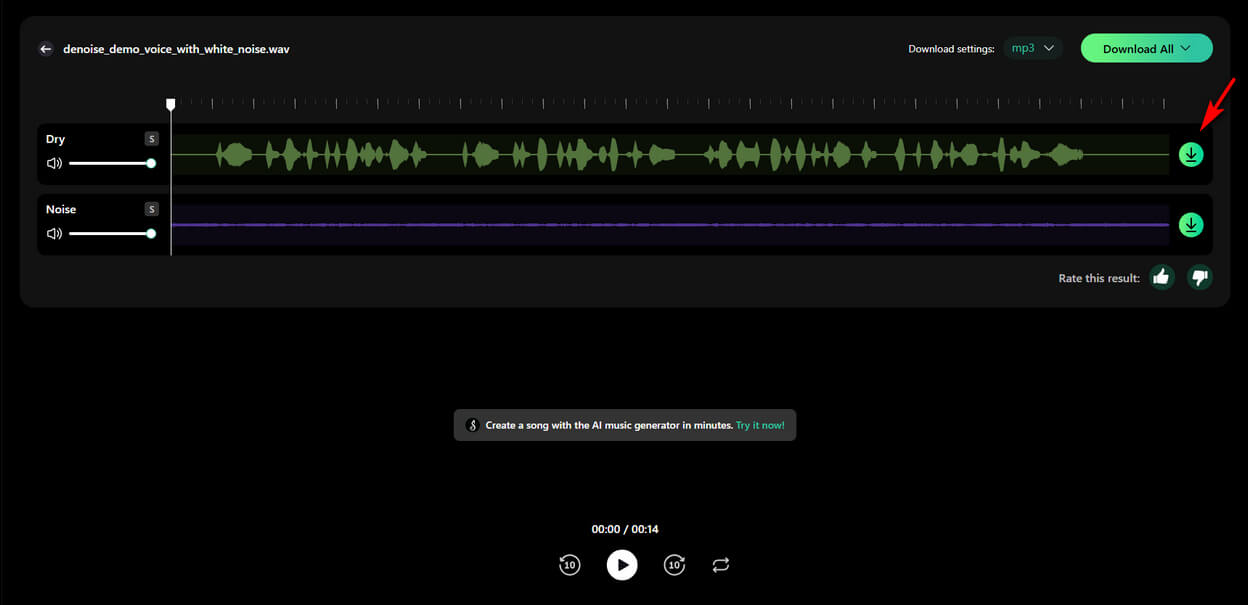
- Preview the cleaned audio, then download the result for podcasts, voiceovers, video editing, or other projects.
Part 3. Tips for Getting Cleaner Audio Recordings
Removing white noise with AI can improve your recordings, but a few simple recording habits can help prevent unwanted noise in the first place.
Choose a Quiet Recording Environment
Record in a quiet room whenever possible. Turn off fans, air conditioners, and other devices that may create constant background noise.
Keep Your Microphone at a Suitable Distance
Place your microphone close enough to capture clear vocals without picking up too much room noise. Avoid placing it too close to your mouth to prevent unwanted breathing sounds and distortion.
Use a Quality Microphone
A good microphone can capture clearer audio with less unwanted noise. Choose one that suits your recording environment and purpose.
Check Your Recording Levels
Set your microphone input level properly before recording. Levels that are too high can introduce hiss and distortion, while levels that are too low may require excessive amplification later.
Monitor Audio While Recording
Use headphones to check your audio in real time. Listening for hiss, humming, and other background noise helps you catch problems before they affect the final recording.
Conclusion
Removing white noise can make audio recordings clearer and more enjoyable to listen to. With Clumi AI white noise remover, you can reduce unwanted hiss, static, and background noise from audio recordings while keeping voices and other important sounds clear. For more advanced noise reduction, Clumi Pro Separation offers a DeNoise model to help clean up audio and video files.
Whether you're improving podcast recordings, cleaning up voiceovers, or enhancing video audio, these AI tools make it easier to reduce distracting noise without complicated editing. Upload your audio or video and start removing white noise with Clumi.
Clumi AI White Noise Remover
Remove white noise and unwanted background sounds from your audio recordings.
FAQs
1. How to remove white noise from audio?
Upload your audio file to Clumi AI and let AI noise remover reduce unwanted white noise automatically. Preview the cleaned audio and download the result with less background noise.
2. Can AI remove white noise from audio without affecting voice quality?
Yes. AI white noise remover can minimize unwanted background sounds while keeping voices clear and natural. Clumi AI helps improve recording quality while retaining the original vocal characteristics.
3. Can I remove white noise from video?
Yes. Upload your video to Clumi AI to reduce white noise in its audio track without extracting the audio separately. It's ideal for cleaning up interviews, vlogs, and tutorials while keeping the original video intact.
4. What types of noise can a white noise remover remove?
A white noise remover can reduce various types of steady background noise, including static, electronic hiss, microphone noise, fan and air conditioner noise, computer hum, and other low-level recording noise.